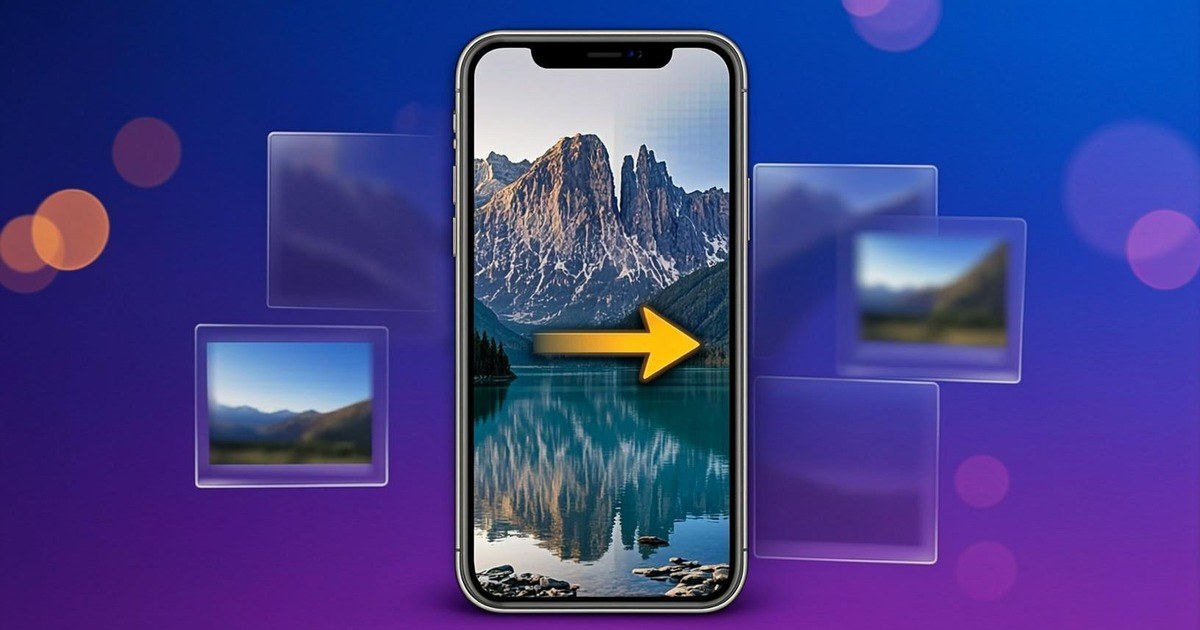
You send someone a photo. On your phone it is sharp. On theirs it is soft, the sky has bands in it, and the fine detail has gone mushy. Nothing was wrong with the photo — WhatsApp changed it on the way.
This is deliberate, it happens to every photo, and there are three ways around it. There is also one widely repeated belief about forwarding that turns out not to hold up, which is worth knowing because it changes what you should actually do.
The quick answer
WhatsApp resizes your photo, re-encodes it as a JPEG at a lower quality, and strips its metadata — all on your phone, before it uploads.
- To send the original: attach it as a document, not as a photo.
- For a better-but-still-compressed version: turn on the HD toggle in the media picker before sending.
- To stop making it worse: when you pass a photo on, save it, do not screenshot it.
What WhatsApp actually does to your photo
Three separate things happen, and it helps to keep them apart because only some of them are reversible.
1. It gets resized. The longest edge is capped. A 12-megapixel phone photo at 4032×3024 comes out far smaller. Pixels that are thrown away here are gone for good — no amount of later processing brings back detail that was never transmitted.
2. It gets re-encoded as a JPEG. At a lower quality setting than your camera used. This is what produces the banding in skies and the blotchiness in skin tones. JPEG works by discarding information the eye is least likely to miss; push the quality down and it starts discarding things you do notice.
3. Its metadata is stripped. The EXIF block goes, taking the GPS coordinates, the timestamp, the camera model and the exposure settings with it. For privacy this is genuinely a good thing — a photo taken at home carries your home address unless something removes it.
All three happen on your device before the upload starts, which is why the file that lands in the other person's chat is the only version they will ever have.
Exact figures for the resolution cap and quality level are not published by WhatsApp and have changed over the years, so treat any specific number you read online — including in this article — as an observation rather than a specification. The behavior, though, is consistent: smaller, re-compressed, metadata gone.
The thing everyone gets wrong about forwarding
The common belief is that every forward compounds the damage — that a photo passed through ten chats is ten times worse than one passed through a single chat. It sounds right. It is mostly wrong, and it is worth showing why.
I took one photo and ran it through the same operation a chat app performs — cap the longest edge, re-encode as JPEG at a reduced quality, drop the metadata — six times in a row, feeding each result back in as the input to the next pass.
| Times sent | File size | Dimensions |
|---|---|---|
| Original | 160 KB | 1200 × 630 |
| 1 | 57 KB | 1000 × 525 |
| 2 | 57 KB | 1000 × 525 |
| 3 | 57 KB | 1000 × 525 |
| 4 | 57 KB | 1000 × 525 |
| 5 | 57 KB | 1000 × 525 |
The first pass does nearly all of the damage. After that, almost nothing changes. The file size does not move. The dimensions do not move. Once an image has already been resized to the cap and squeezed through the encoder at a given quality, running it through the identical process again has very little left to take.
So why do forwarded memes look like they have been through a war?
Because people screenshot instead of saving. A screenshot is not the same file passed along — it is a brand new image, captured at whatever size it happened to be displayed on that screen, and then compressed again from scratch. Now the shrinking really does compound. Here is the same photo where each hop is a screenshot rather than a save:
| Screenshot hops | File size | Dimensions |
|---|---|---|
| 1 | 66 KB | 1100 × 578 |
| 2 | 47 KB | 880 × 462 |
| 3 | 34 KB | 704 × 370 |
| 4 | 24 KB | 563 × 296 |
| 5 | 17 KB | 450 × 237 |
Five hops, and the image has lost three quarters of its width and nearly all of its file size. That is the degradation everyone recognizes — and it is caused by the screenshot habit, not by the forwarding itself.
The practical rule: when you want to pass a photo on, save it to your gallery and send the saved file. Do not screenshot the chat.
A note on what these numbers are and are not: I ran the resize-and-re-encode operation myself on a real photo so the figures are reproducible, but they are not a capture of WhatsApp's own output. They demonstrate how the process behaves, not what WhatsApp specifically produced on a given day. Your own numbers will differ with the photo and the app version — the shape of the result is the point.
Three ways to send the original
1. Send it as a document — the only method that keeps the file intact
In a chat, open the attach menu and choose Document rather than Photo or Gallery, then pick the image file. WhatsApp treats it as a file to be delivered rather than a photo to be optimized, so it is not resized, not re-encoded, and not stripped.
The trade-off is that it arrives as a file attachment instead of an inline preview, and the recipient has to tap to download it. For a handful of photos that actually matter — a contract scan, a portfolio image, a photo someone will print — it is worth the extra tap.
2. Turn on HD — better, but still compressed
Since 2023 WhatsApp has offered an HD toggle. Select your photo, then look for the HD button in the top-right of the media picker before you hit send.
Be clear about what this does: it raises the ceiling, it does not remove it. The photo is still resized and still re-encoded — just less aggressively. It is a real improvement over the default and it costs one tap, but it is not the original file.
3. Check your upload-quality setting
WhatsApp has a media upload quality preference, usually found under Settings → Storage and data. Depending on your version and platform you may see options along the lines of Auto, Best quality, and Data saver.
The exact wording and location move around between releases, so look rather than follow a fixed path. If "Data saver" is selected, that alone explains a lot of soft photos.
How to check what happened to a photo
You do not have to guess whether a photo was compressed. The file tells you, and both checks take about ten seconds.
Check the dimensions
Save the photo you received, then run it through an image dimension checker. Compare the pixel size against the original on the sender's phone. If the original was 4032 pixels wide and the received copy is nowhere near that, it was resized on the way.
Check the metadata
Run the same file through an EXIF viewer. An untouched camera photo carries a full metadata block — camera model, lens, exposure, timestamp, often GPS coordinates. A photo that has been through a chat app usually carries almost nothing.
That second check is the more revealing of the two, because metadata is all-or-nothing. If the EXIF block is empty, the file was definitely re-encoded somewhere along the line, whatever its dimensions say.
Both of those tools run in your browser — the photo is read on your own device rather than uploaded somewhere, which matters when the thing you are inspecting is a private photo's location data.
Common mistakes
- Screenshotting a photo to pass it on. The single biggest cause of the degradation people blame on forwarding. Save the file instead.
- Assuming HD means original. It does not. It means less compressed.
- Sending a large file as a photo and hoping. Size has no bearing on it; a 40 MB photo and a 2 MB photo both get resized to the same ceiling.
- Re-sharpening a received photo to "fix" it. Sharpening exaggerates the compression artifacts along with the edges. Detail that was discarded on upload cannot be recovered.
- Relying on WhatsApp to strip location data. It does, but only for photos sent as photos. Send the same image as a document and the GPS coordinates travel with it. If privacy is the goal, strip the metadata yourself first.
That last one catches people out. The two goals pull in opposite directions: sending as a document preserves everything, and "everything" includes the location the photo was taken.
Frequently asked questions
To keep uploads fast and storage costs down. Every photo you send is resized so the longest edge is capped, then re-encoded as a JPEG at a lower quality setting, and its metadata is stripped. This happens on your phone before the file is uploaded, which is why the version that arrives is smaller than the one in your gallery.
No. HD raises the ceiling, it does not remove it. The photo is still resized and still re-encoded as a JPEG, just at a higher resolution and quality than the standard setting. If you need the untouched file, send it as a document instead.
Much less than people think. I ran the same resize-and-re-encode operation on one photo six times in a row: the file went from 160 KB to 57 KB on the first pass, and then stayed at 57 KB for every pass after that. The first send does nearly all the damage. What actually ruins forwarded photos is screenshotting instead of saving.
Because each person screenshots rather than saves. A screenshot is a brand new, smaller image, so the shrinking compounds. In my test, a photo that was screenshotted and re-sent five times fell from 1100 pixels wide to 450, and from 66 KB to 17 KB. Saving the image instead of screenshotting stops that chain.
Attach it as a document rather than a photo. In a chat, use the attach menu and choose Document, then pick the image file. WhatsApp sends it as a file rather than a photo, so it is not resized, re-compressed or stripped of metadata.
Yes. The re-encode drops the metadata block, which includes GPS coordinates, the timestamp, the camera model and the exposure settings. For privacy that is a genuine benefit. If you needed that information, keep your own copy of the original.
Your original, almost always. If you want to confirm what changed, check the received photo's pixel dimensions and metadata against your original — both are things you can read from the file itself.
Method
The figures in this article come from running the resize-and-re-encode operation on a single real photograph and measuring the output at each pass, so they are reproducible. They are a demonstration of how the process behaves rather than a capture of WhatsApp's own output, and WhatsApp does not publish its compression parameters. Test with your own photo if you want your own numbers.